Showing posts with label Android. Show all posts
Showing posts with label Android. Show all posts
Sunday, August 12, 2012


Wednesday, January 25, 2012
Saturday, January 21, 2012
Root Toolbox 1.0.6Android App
NANDROID BACKUP BEORE USE!!!
Root and S-off are require to use most features in this app.
Current Features:
-Reboot/Recovery/Bootloader/HotBoot/Download-Mode
-SetAPN
-Wipe Delvik
-Wipe Battery Stats
-Remount System
-Flash Recovery
-Fix permissions
-Launch Hidden Menu
-Fix Market Links
-Sim Settings
-Update Busybox
-Erase Recovery
-CM7 Themes
-Restart Status Bar
-Dual Mount Sdcard + EXT
-System App Remover
-Enable/Disable Bootanimation
-Reboot/Recovery/Bootloader/HotBoot/Download-Mode
-SetAPN
-Wipe Delvik
-Wipe Battery Stats
-Remount System
-Flash Recovery
-Fix permissions
-Launch Hidden Menu
-Fix Market Links
-Sim Settings
-Update Busybox
-Erase Recovery
-CM7 Themes
-Restart Status Bar
-Dual Mount Sdcard + EXT
-System App Remover
-Enable/Disable Bootanimation
All suggestions on features I can add or change to improve this app are always welcome. Please fill free to comment and I will reply as soon as possable.

| File Format : | apk |
| File Size: | 1,245 KB |
| Required: | Android OS 1.1 or above |
Download
Source: Android Market
Memory Booster (Ram Optimizer 3.5)
Memory Booster is a powerful mobile memory & RAM boosting tool specially designed for Android smartphone users. It is designed to tackle the difficult yet crucial problem of memory management for all Android devices. Memory Booster reclaims lost memory for your programs by defragmenting your smartphone's memory and recovering memory leaks from poorly behaved applications.
* Memory Booster (Full Version) is now available on Google Android Market. *
Features:
* Real-time Memory Status Report & Monitor
Memory Booster provides a live chart to demonstrate your device's total/free memory and current memory usage.
* One-click Quick Memory Boosting
Besides automatic memory boosting, Memory Booster also allows you to manually boost your memory by Quick Boost.
More features in upgraded version:
* Setting Your Performance Target
With Auto Boost Threshold set, Memory Booster keeps your memory higher than desired level, and act immediately if memory drops down.
* Auto-boosting in the Background
With Auto Boost Interval, Memory Booster runs in the background and automatically reclaims memory for your Android at interval.
* Android system crash protection
Memory Booster always watches your system resources and cleans up systemmemory once it reaches a critical point.
* And there is more..
Other features include embedded Task Killer, Whitelist Manager, Boost Level Manager & Memory Boost Log, which assist Memory Booster to perform more efficiently and friendly.

* Memory Booster (Full Version) is now available on Google Android Market. *
Features:
* Real-time Memory Status Report & Monitor
Memory Booster provides a live chart to demonstrate your device's total/free memory and current memory usage.
* One-click Quick Memory Boosting
Besides automatic memory boosting, Memory Booster also allows you to manually boost your memory by Quick Boost.
More features in upgraded version:
* Setting Your Performance Target
With Auto Boost Threshold set, Memory Booster keeps your memory higher than desired level, and act immediately if memory drops down.
* Auto-boosting in the Background
With Auto Boost Interval, Memory Booster runs in the background and automatically reclaims memory for your Android at interval.
* Android system crash protection
Memory Booster always watches your system resources and cleans up systemmemory once it reaches a critical point.
* And there is more..
Other features include embedded Task Killer, Whitelist Manager, Boost Level Manager & Memory Boost Log, which assist Memory Booster to perform more efficiently and friendly.
| File Format : | apk | ||||
| File Size: | 316 KB | ||||
|
Mobile Antivirus for Android
Fast and lightweight malicious app protection for your phone
Antivirus Free will detect new applications that are installed on your system, and cross-reference them with our database of known malicious apps.
It uses less than 0.1% of your battery, and will let you know when such an app is detected, keeping your phone secure.
With the hundreds of malware apps out in the wild, Antivirus Free is a must have for every Android user. It offers you malware protection, spyware protection and trojan protection 24 hours a day.
 Click Download to Save Directly to your Phone or PC
Download
Antivirus Free will detect new applications that are installed on your system, and cross-reference them with our database of known malicious apps.
It uses less than 0.1% of your battery, and will let you know when such an app is detected, keeping your phone secure.
With the hundreds of malware apps out in the wild, Antivirus Free is a must have for every Android user. It offers you malware protection, spyware protection and trojan protection 24 hours a day.
Download
Mobile Malware Increases Chances of Infection in Android
Mobile malware is rising, and there have been explosions in the world of viruses and Trojans. Virus makers are now targeting mobile platforms- thanks to their growing popularity. If we take the statistics from last 6 months, the chances of Android smart phones to be infected have doubled.


Lookout Security, the company that develops security solutions for Android phones, reported that the probability of Android phones catching a virus (or any other malware) has risen by 2 ½ times since January 2011.
About 1%-5% Android users have had infected phones by June, and these are just the reported numbers. The actual cases are much more, where users don’t know that their phones are infected with malware.
Kevin Mahaffey, the CTO and co-founder of San Francisco branch of Lookout, disclosed some startling statistics: there were 80 different types of Android malware in January 2011, and the numbers rose to 400 in June. The numbers have risen again in July and August, but the stats have not yet been disclosed. This is a threatening situation for Android users, who are quickly switching to newer and better security mechanisms to keep their phones and tablets safe from the rising risk of virus problems.
These stats have been received by Mobile Threat Network, after analyzing the applications that were acquired from independent and official markets, along with the malware detection outcome from security software. Many apps were not secure, making the phone vulnerable to virus attacks.
The infamous Android malware trouble rose to public eyes this March, when Google pulled over 50 applications from the Android market. These apps were infected with DroidDream, a strong malware. The company continued pulling apps from the market in small clusters from Google’s official website for downloading, along with some third party markets, especially in China.
The biggest malware threat to Android users is probably the rogue application model. In this model, attackers pirate a legit program and add some malicious code to it. Then they release it into the market. This repackaging of legit apps poses a lot of danger, and has proved to be an effective and strong malware agent.
But rogue app isn’t the only threat. Malware makers are innovative, and they keep coming up with newer and ‘better’ techniques to ruin people’s Android phones and tabs. Another technique that is popular among Android malware makers is the upgrade attack. This attack is used to cover the infected app. Usually when an app is found infected, it is pulled from the Android marketplace. To make sure their app stays in the market, attackers use the upgrade attack.
They give a clean app in the beginning. And then they offer an upgrade, which is infected with virus. And since most people have automatic updates on, within some time, every device that has the app becomes infected.
Mahaffey observed that hackers use different techniques to make their malware spread out widely. Mobile malware is still on its experimental stage. It should be curbed before it becomes a big problem.
Wednesday, January 11, 2012
Best Free Office Documents Viewer for android
App Name: ThinkFree Office Mobile Viewer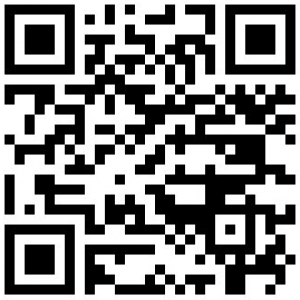
Developer: ThinkFree Mobile
Download Size: 7.8 MB
Version Reviewed: v2.0.1220.2
Requires: Android 2.0 and up
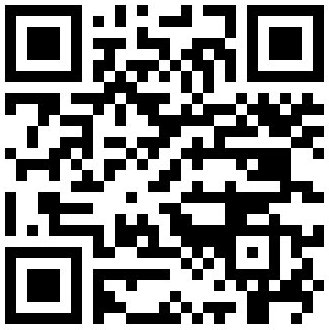
Developer: ThinkFree Mobile
Download Size: 7.8 MB
Version Reviewed: v2.0.1220.2
Requires: Android 2.0 and up
How to scan QR codes to download Android apps
You may have noticed that I frequently post QR codes/barcodes when writing about Android programs. That’s because they’re the easiest way to give you a sort of download link for Android apps. While I can give you a link to an iPhone app which you can use to download the program using iTunes, there is no desktop client for Android. But using a barcode scanner, you can just point your camera at a QR code on your computer screen to open up the Android Market page for that app.
 In addition to QR codes, Barcode scanner lets you scan the
All you need is an Android phone with a camera and a barcode scanning application. One of my favorites is the cleverly-titled, Barcode Scanner from ZXing Team. It’s available as a free download from the Android Market and works with all versions of Android.
In addition to QR codes, Barcode scanner lets you scan the barcodes on books, CDs, or other products. It also features integration with Google Shopper which makes it easy to compare prices, or you can just search Google for more information about products.
But back to QR codes, all you have to do is fire up the Barcode Scanner app and point your camera at your computer screen when you see a QR code. Barcode Scanner will recognize what kind of code it’s looking at and provide you with the option to open the link in a browser — which will automatically take you to the android Market where you can download the app. You can also share links via email or SMS.
Looking for a way to create your own QR code? Smarterware‘s Gina Trapini suggest using Kaywa’s QR-Code Generator which lets you encode a URL, phone number, SMS, or up to 250 characters of text as a QR code.
For instance, you can scan the QR code on the right to visit the mobiputing home page.
Update: Google recently launched a web-based version of the Android Market. Most users can visit market.android.com in a desktop web browser, sign in with their Google account, and send software directly to their phones by clicking a button. This doesn’t completely make QR codes and barcode scanners obsolete though.
First, there are already thousands of web sites with QR codes on them, and I don’t expect anyone to go through and manually update all the links. But more importantly, QR codes aren’t just for download apps. They can also be used to let you open a web site, view pictures, or explore other data with your phone.
QR codes are also used for downloading apps for other platforms such as Windows Phone 7.
sptrics.blogspot.com
All you need is an Android phone with a camera and a barcode scanning application. One of my favorites is the cleverly-titled, Barcode Scanner from ZXing Team. It’s available as a free download from the Android Market and works with all versions of Android.
In addition to QR codes, Barcode scanner lets you scan the barcodes on books, CDs, or other products. It also features integration with Google Shopper which makes it easy to compare prices, or you can just search Google for more information about products.
But back to QR codes, all you have to do is fire up the Barcode Scanner app and point your camera at your computer screen when you see a QR code. Barcode Scanner will recognize what kind of code it’s looking at and provide you with the option to open the link in a browser — which will automatically take you to the android Market where you can download the app. You can also share links via email or SMS.
Looking for a way to create your own QR code? Smarterware‘s Gina Trapini suggest using Kaywa’s QR-Code Generator which lets you encode a URL, phone number, SMS, or up to 250 characters of text as a QR code.
For instance, you can scan the QR code on the right to visit the mobiputing home page.
Update: Google recently launched a web-based version of the Android Market. Most users can visit market.android.com in a desktop web browser, sign in with their Google account, and send software directly to their phones by clicking a button. This doesn’t completely make QR codes and barcode scanners obsolete though.
First, there are already thousands of web sites with QR codes on them, and I don’t expect anyone to go through and manually update all the links. But more importantly, QR codes aren’t just for download apps. They can also be used to let you open a web site, view pictures, or explore other data with your phone.
QR codes are also used for downloading apps for other platforms such as Windows Phone 7.
Monday, January 9, 2012
20 really useful Android tips
1. Activate the Android Power Strip
The single most important feature in Android 2.1 is its built-in power strip widget. Here, you're able to quickly disconnect all the phone's battery-destroying features, like Wi-Fi, Bluetooth and the Great Batter Killer that is GPS. Long-press on the screen and install it via the widgets category.

2. Android call screening
If you're a paranoid call-screener, Android is there for you. Open up the Contacts listing of the person you're currently avoiding, then select Menu > Options. From here you're able to ping all incoming calls from this person directly to voicemail. Give people the brush off with Android.
3. Set up custom caller ringtones
Alternatively, if you like talking to people, the same screen lets you allocate a specific custom ringtone to each caller stored in your Contacts directory.
4. Add your alarm clock to your task killer
A classic mistake, this. We're constantly being told of the (debatable) importance of using a task manager to maximise Android battery life, and if you want to go down that route you're welcome. However, when killing all your tasks to save battery life, remember that your alarm clock is a task in itself - kill that and you'll wake up in a panic at 10.15am tomorrow morning.
5. Organise things into folders
While Steve Jobs may have recently made quite a big deal about letting iOS users organise things into folders, Android's been doing that for ages. Fancy a quick Home screen shortcut to your starred favourite contacts? Long-press the Home screen and make it so.
6. Rename Android folders
And, once you've done that, to customise things to perfection it's possible to rename folders. Simply open the folder, then long-press on its name in the top bar to bring up the Top Secret renaming field.

7. Check the date
Possibly one of the tiniest undocumented features is the date-checking facility. Press the Notification bar at the top left of the screen. It tells you what the date is. Go on, try it. It will.
8. Mount your SD card
Also accessed via the Notifications field is the "Mount" option. Many an Android newcomer has failed at this hurdle, as mounting your phone's SD card is an awkward step that needs to be taken before it'll appear as an external drive for data copying. Plug it in, mount it, then copy.
9. Set up your keyboard launch shortcuts
One of the reasons many people still love their QWERTY keyboards is Google's inclusion of the reliable old keyboard shortcut system in Android. The phone has a completely customisable collection of app launcher shortcuts, which are found under Settings > Applications > Quick Launch.

10. Download more Android live wallpapers
One thing that makes Android 2.1 a little more swish and exciting than the rather dull earlier versions is its support for Live Wallpapers - the animating image format that brings your Home screen to life. There's a negligible battery life hit for doing so, but in return you get a phone that looks cool. Which is what life's all about, right? Search the Android Market for Live Wallpaper - there are loads.
11. Easy zoom
A teeny little feature, this, but one that's super-useful if you're using all five of your Home screens - or a custom user interface that offers even more. Tapping the dots beside the dock at the bottom of the screen brings up a mini thumbnail list of all Home screens, allowing you to get from Screen 1 to Screen 5 without wearing a groove into your screen surface.
12. Add a Navigation shortcut to Android
Android 2.1 lets users set up local short-cuts to the Maps Navigation satnav app. As long as you have one of the latest Google Maps updates, you're able to select one of your Navigation routes and attach it directly to a shortcut on the Home screen - creating a one-press launcher for your favourite trips.
13. Set your double-tap zoom level
On phones that don't support multi-touch zooming, you can take more control of your web browsing zoom via the browser's setting page. Change your view to "Close" if you want the page to fly right into extreme close up when you double-tap the screen, or leave it to "Far" if you're happy to have text only cropping in a little closer when you double-tap.

14. Change Android browser font size
From the same menu you're also able to select your browser font size. Your personal ideal settings will vary depending on your screen size, resolution and eye sight, but a few minutes getting it set up so pages are instantly readable will save many cumulative hours of resizing over the coming years.
15. Search web pages
Menu > More > Find on Page lets you search for specific text terms on web pages, if you can't be bothered reading the thing properly as the author intended.
16. Practise your robot voice
Android 2.1 features voice-input for every text field. Which is nice, although the delay for "processing" - and often rather left field results - mean it's usually quicker to just bite the bullet and type things. Remember to say "comma" to tell it to insert a comma. Full stop.
17. Add words to the Android dictionary
This is such a useful feature it ought to be screamed about via a sticker on the phone when you take it out of the box. If you've been labouring through life with a difficult-to-spell surname, type it once into your Android phone's text field - then long-press on it in the suggested word field. This adds it to the dictionary, so you'll never have to type more than the first couple of characters of your stupid name again.

18. Sign up for a Picasa account
Google's online image-sharing tool may have failed to capture the public's imagination in the same way as Flickr, but there's one good reason to register yourself one - Android 2.1's 3D gallery can auto-sync your photos with your Picasa account. Photo sharing works both ways, so you'll have to deactivate sync if you don't want your entire web gallery popping up on your phone.
19. Download web images
If you've seen one of those funny photographs on the internet, long-pressing on it lets you download it to your phone - and it'll pop up in your Gallery for easy sharing.
20. Manage your Android call log
It's very easy to delete individual items from Android's log of made and received calls - simply long-press on an item and delete it. Then sleep easier.
The single most important feature in Android 2.1 is its built-in power strip widget. Here, you're able to quickly disconnect all the phone's battery-destroying features, like Wi-Fi, Bluetooth and the Great Batter Killer that is GPS. Long-press on the screen and install it via the widgets category.
2. Android call screening
If you're a paranoid call-screener, Android is there for you. Open up the Contacts listing of the person you're currently avoiding, then select Menu > Options. From here you're able to ping all incoming calls from this person directly to voicemail. Give people the brush off with Android.
3. Set up custom caller ringtones
Alternatively, if you like talking to people, the same screen lets you allocate a specific custom ringtone to each caller stored in your Contacts directory.
4. Add your alarm clock to your task killer
A classic mistake, this. We're constantly being told of the (debatable) importance of using a task manager to maximise Android battery life, and if you want to go down that route you're welcome. However, when killing all your tasks to save battery life, remember that your alarm clock is a task in itself - kill that and you'll wake up in a panic at 10.15am tomorrow morning.
5. Organise things into folders
While Steve Jobs may have recently made quite a big deal about letting iOS users organise things into folders, Android's been doing that for ages. Fancy a quick Home screen shortcut to your starred favourite contacts? Long-press the Home screen and make it so.
6. Rename Android folders
And, once you've done that, to customise things to perfection it's possible to rename folders. Simply open the folder, then long-press on its name in the top bar to bring up the Top Secret renaming field.
7. Check the date
Possibly one of the tiniest undocumented features is the date-checking facility. Press the Notification bar at the top left of the screen. It tells you what the date is. Go on, try it. It will.
8. Mount your SD card
Also accessed via the Notifications field is the "Mount" option. Many an Android newcomer has failed at this hurdle, as mounting your phone's SD card is an awkward step that needs to be taken before it'll appear as an external drive for data copying. Plug it in, mount it, then copy.
9. Set up your keyboard launch shortcuts
One of the reasons many people still love their QWERTY keyboards is Google's inclusion of the reliable old keyboard shortcut system in Android. The phone has a completely customisable collection of app launcher shortcuts, which are found under Settings > Applications > Quick Launch.
10. Download more Android live wallpapers
One thing that makes Android 2.1 a little more swish and exciting than the rather dull earlier versions is its support for Live Wallpapers - the animating image format that brings your Home screen to life. There's a negligible battery life hit for doing so, but in return you get a phone that looks cool. Which is what life's all about, right? Search the Android Market for Live Wallpaper - there are loads.
11. Easy zoom
A teeny little feature, this, but one that's super-useful if you're using all five of your Home screens - or a custom user interface that offers even more. Tapping the dots beside the dock at the bottom of the screen brings up a mini thumbnail list of all Home screens, allowing you to get from Screen 1 to Screen 5 without wearing a groove into your screen surface.
12. Add a Navigation shortcut to Android
Android 2.1 lets users set up local short-cuts to the Maps Navigation satnav app. As long as you have one of the latest Google Maps updates, you're able to select one of your Navigation routes and attach it directly to a shortcut on the Home screen - creating a one-press launcher for your favourite trips.
13. Set your double-tap zoom level
On phones that don't support multi-touch zooming, you can take more control of your web browsing zoom via the browser's setting page. Change your view to "Close" if you want the page to fly right into extreme close up when you double-tap the screen, or leave it to "Far" if you're happy to have text only cropping in a little closer when you double-tap.
14. Change Android browser font size
From the same menu you're also able to select your browser font size. Your personal ideal settings will vary depending on your screen size, resolution and eye sight, but a few minutes getting it set up so pages are instantly readable will save many cumulative hours of resizing over the coming years.
15. Search web pages
Menu > More > Find on Page lets you search for specific text terms on web pages, if you can't be bothered reading the thing properly as the author intended.
16. Practise your robot voice
Android 2.1 features voice-input for every text field. Which is nice, although the delay for "processing" - and often rather left field results - mean it's usually quicker to just bite the bullet and type things. Remember to say "comma" to tell it to insert a comma. Full stop.
17. Add words to the Android dictionary
This is such a useful feature it ought to be screamed about via a sticker on the phone when you take it out of the box. If you've been labouring through life with a difficult-to-spell surname, type it once into your Android phone's text field - then long-press on it in the suggested word field. This adds it to the dictionary, so you'll never have to type more than the first couple of characters of your stupid name again.
18. Sign up for a Picasa account
Google's online image-sharing tool may have failed to capture the public's imagination in the same way as Flickr, but there's one good reason to register yourself one - Android 2.1's 3D gallery can auto-sync your photos with your Picasa account. Photo sharing works both ways, so you'll have to deactivate sync if you don't want your entire web gallery popping up on your phone.
19. Download web images
If you've seen one of those funny photographs on the internet, long-pressing on it lets you download it to your phone - and it'll pop up in your Gallery for easy sharing.
20. Manage your Android call log
It's very easy to delete individual items from Android's log of made and received calls - simply long-press on an item and delete it. Then sleep easier.
Subscribe to:
Posts (Atom)